FAQ
If you encounter any questions while using BookmarkHub, here are some common guides and solutions.
Why does GitHub Token validation fail?
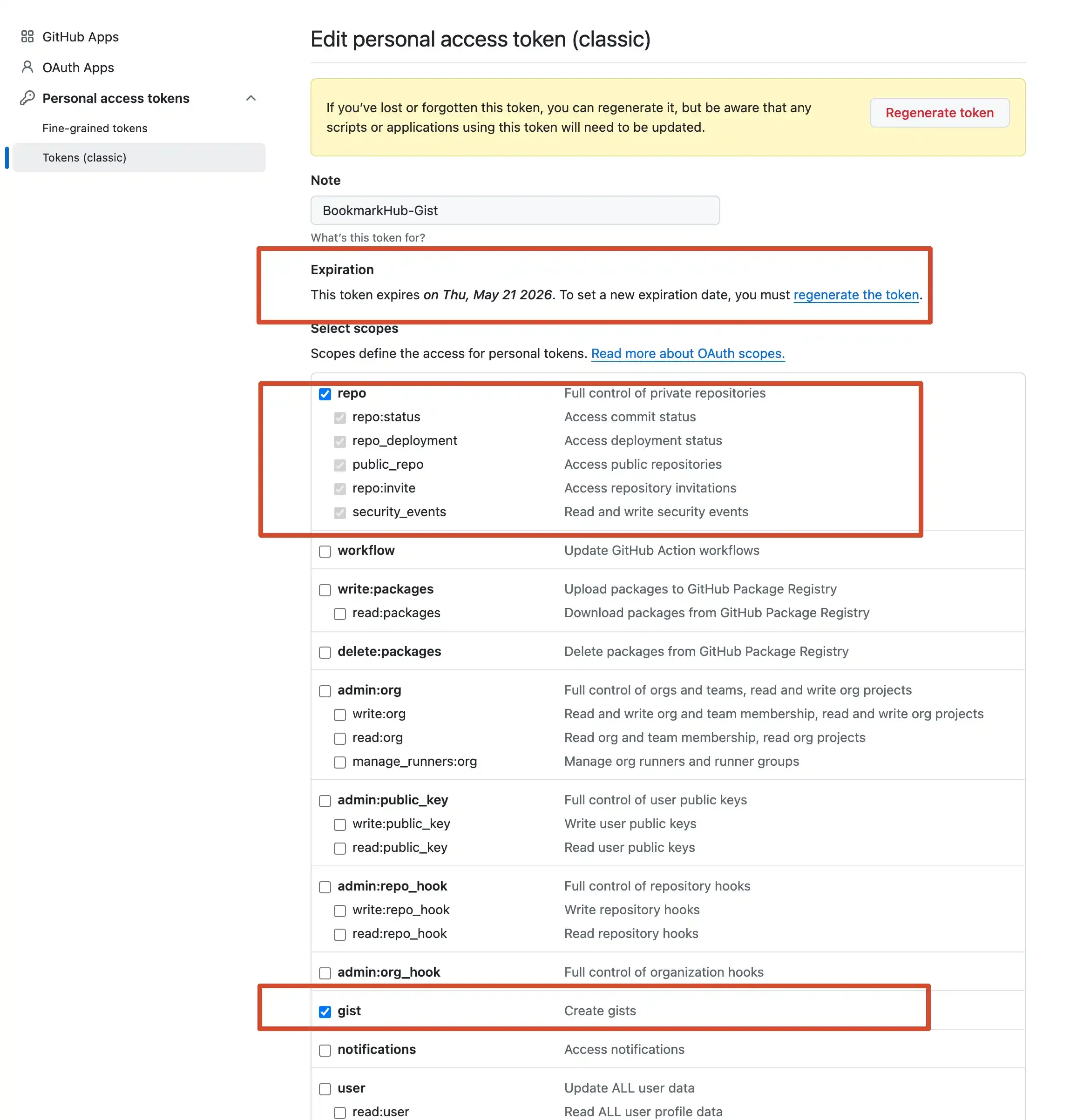
Section titled “Why does GitHub Token validation fail?”- Insufficient Permissions: Go to GitHub Token settings and check if your token has the
repoorgistscope checked. - Token Expired: GitHub allows creating tokens with an expiration date. If your token expires, you need to regenerate one on GitHub and replace it in the extension settings. Alternatively, you can create a token with no expiration.
Will BookmarkHub steal my bookmarks?
Section titled “Will BookmarkHub steal my bookmarks?”Absolutely not. BookmarkHub adopts a “Bring Your Own Backend (BYOB)” model. Your bookmark data is locally encrypted and serialized by the extension, and sent by the browser only to your own GitHub repo/Gist/Gitee/WebDAV/OneDrive/Google Drive. BookmarkHub does not store any bookmark record data.
Is Firefox supported?
Section titled “Is Firefox supported?”Yes, of course. Currently, BookmarkHub perfectly supports Chromium-based browsers (Chrome, Edge, Brave, Helium, Arc, Zen etc.) and Firefox browser.
What should I do if synchronization fails?
Section titled “What should I do if synchronization fails?”1. Check network connection and extension permissions
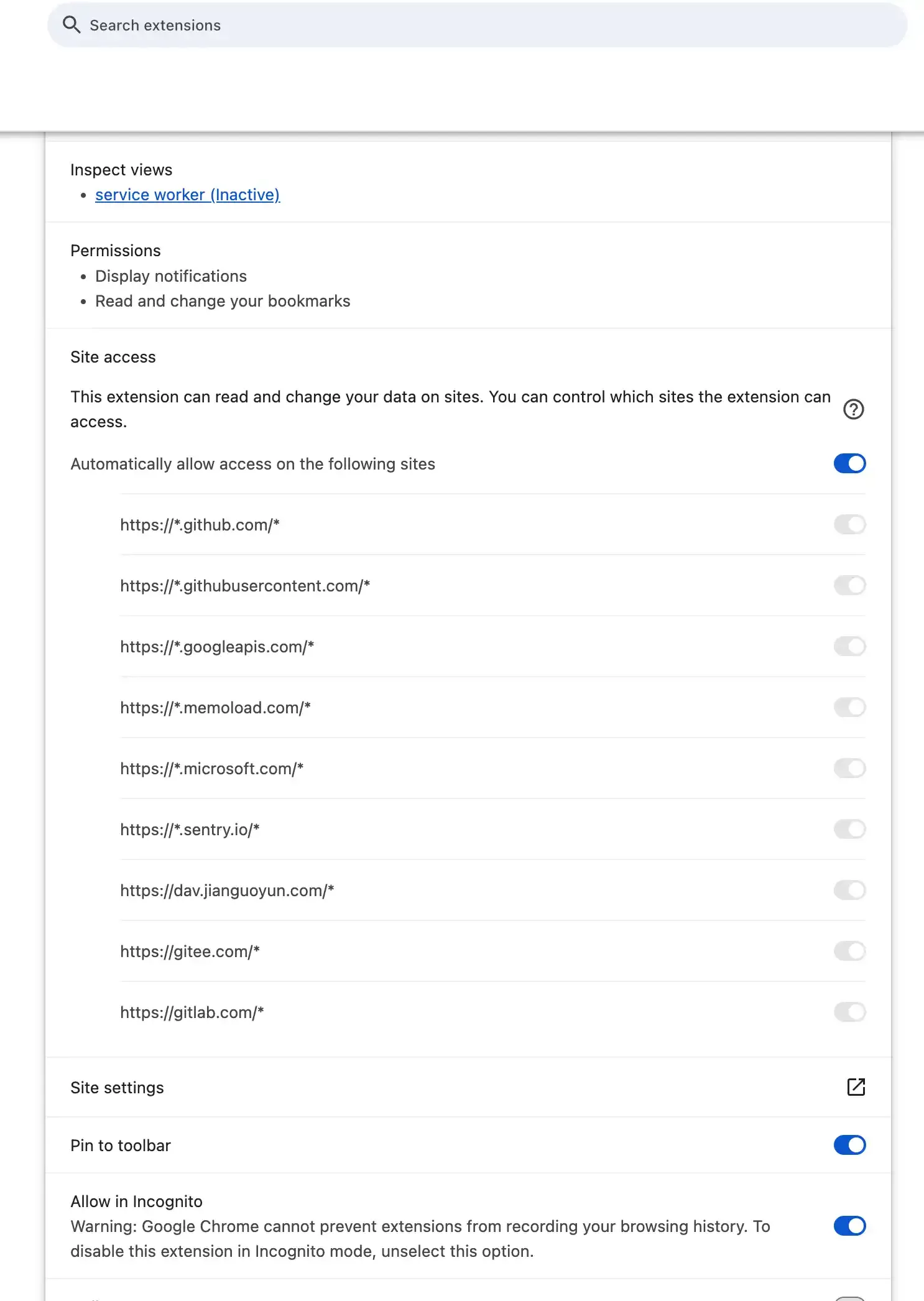
2. Check if Token has expired
3. Check if Token has sufficient permissions
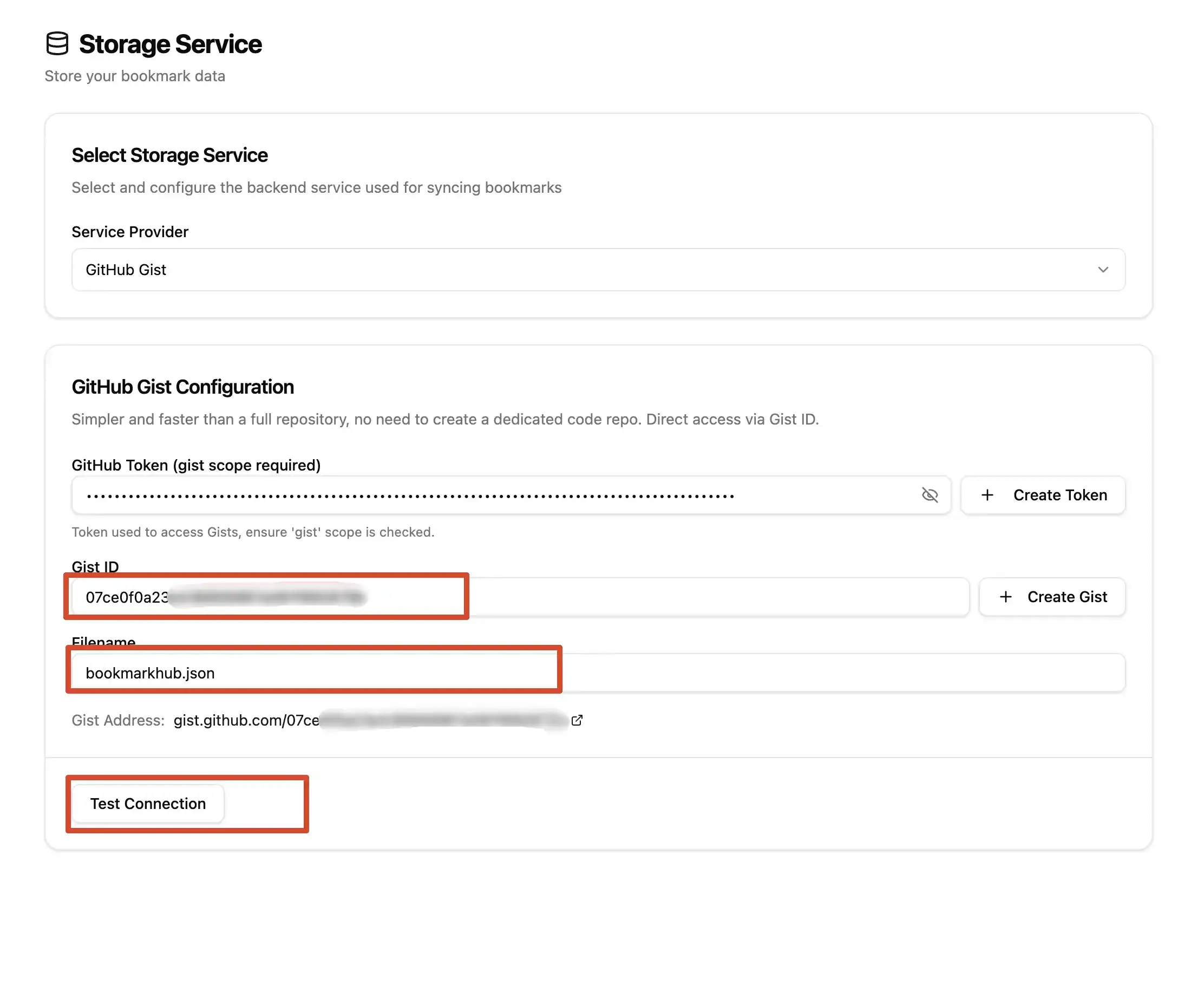
4. Check if file path and filename are correct
5. If it still doesn’t work, please provide feedback on GitHub Issues or contact me at [[email protected]]
What are the Upload, Download, and Sync Now buttons on the main page for?
Section titled “What are the Upload, Download, and Sync Now buttons on the main page for?”To meet synchronization needs in different scenarios, BookmarkHub provides three different operation methods:
-
Overwrite Upload: Forcibly push current local browser bookmarks to the cloud. Note: This will overwrite existing data in the cloud, usually used for initial backup or when local data is confirmed to be the most accurate.
-
Download from Cloud: Pull bookmarks from the cloud and forcibly overwrite local browser bookmarks. Note: This will clear and replace current browser bookmarks, usually used for new device initialization or when you want to restore to a certain state in the cloud.
-
Sync Now (Recommended): This is the most common two-way incremental synchronization method. Its workflow is as follows:
- Difference Comparison: The plugin reads both local and cloud bookmark data for intelligent difference analysis.
- Two-way Merging: Merges add, modify, or delete operations from both ends to ensure no data is lost from either side.
- Version Generation: Generates a new bookmark version after merging is complete.
- Local Update: Updates the merged new version to your browser.
- Cloud Submission: Submits and stores the new version to the cloud.